
How to Deploy a Status Page to Cloudflare Workers
Problem
You need a fast, reliable, and automated status page, but you don't want to manage the hosting infrastructure. Manually updating a status page during an incident is inefficient and error-prone.
Solution
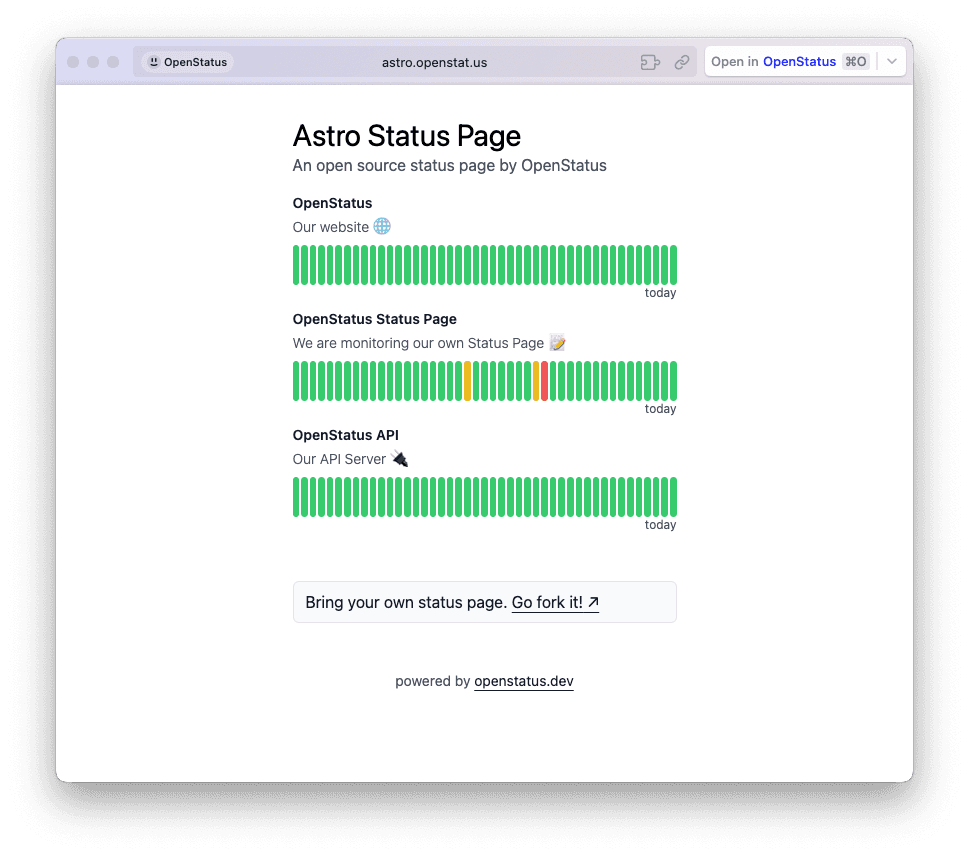
Deploy a custom status page to Cloudflare's global edge network using openstatus as the data source. This guide shows you how to use our Astro-based template to create a status page that automatically reflects your openstatus status page.
The code for the template is available on GitHub.
Prerequisites
- A Cloudflare account
- An openstatus account with at least one status page configured.
Step-by-step guide
1. Get your openstatus API key
First, you need an API key to fetch your status page data.
- Navigate to your openstatus dashboard.
- Go to Developers > API Keys and find the API Keys card.
- Click Create and copy the key.
2. Find your status page ID
The template renders one of your openstatus status pages. Open the status page in the openstatus dashboard and copy the ID from the URL (/status-pages/[ID]).
3. Set up the Astro project
Clone our status page template and install the dependencies.
git clone https://github.com/openstatusHQ/astro-status-page.git
cd astro-status-page
pnpm install
4. Run it locally
The template reads two secrets: API_KEY and STATUS_PAGE_ID. For local development, put them in a .dev.vars file.
- Copy
.dev.vars.exampleto.dev.vars. - Fill in both values:
API_KEY=your_openstatus_api_key STATUS_PAGE_ID=your_status_page_id - Start the dev server:
pnpm dev
5. Set your secrets on Cloudflare
Before deploying, provide both secrets to your Worker:
npx wrangler secret put API_KEY
npx wrangler secret put STATUS_PAGE_ID
Wrangler prompts you for each value.
6. Deploy to Cloudflare Workers
Now you can deploy your status page.
pnpm run deploy
After the command completes, your status page will be live on Cloudflare Workers. To upload a preview version without promoting it, run pnpm run deploy:preview.